
A computer can still say Windows 11 on the box and be running a release that has reached the end of support. Home and Pro users on version 24H2 have arrived at that point this week. The useful check isn't whether you've moved on from Windows 10. It's which edition and feature version are actually installed.
That distinction is easy to miss when several years of releases share the same product name. It also changes the answer to a practical question: should you be looking for an update, or is the release you're using still within its support period?
Check two fields, not the sticker
Microsoft's Home and Pro lifecycle page lists 24H2's end date in October 2026, while 25H2 remains supported into October 2027 and 26H2 into October 2028. Windows 11 as a product is still in support. That doesn't extend the life of every release carrying its name.
Start with Settings, then System, then About. Under Windows specifications, note both Edition and Version. The Windows version identification guide also distinguishes the OS build, but you don't need to compare a long build number with somebody else's screenshot to establish these two basic facts.
For a personal machine showing Home or Pro alongside 24H2, the next step is to check the supported update offered to that device. For a machine already on 25H2, the 24H2 cutoff isn't a reason to assume the same deadline applies. Matching the version is the important part.
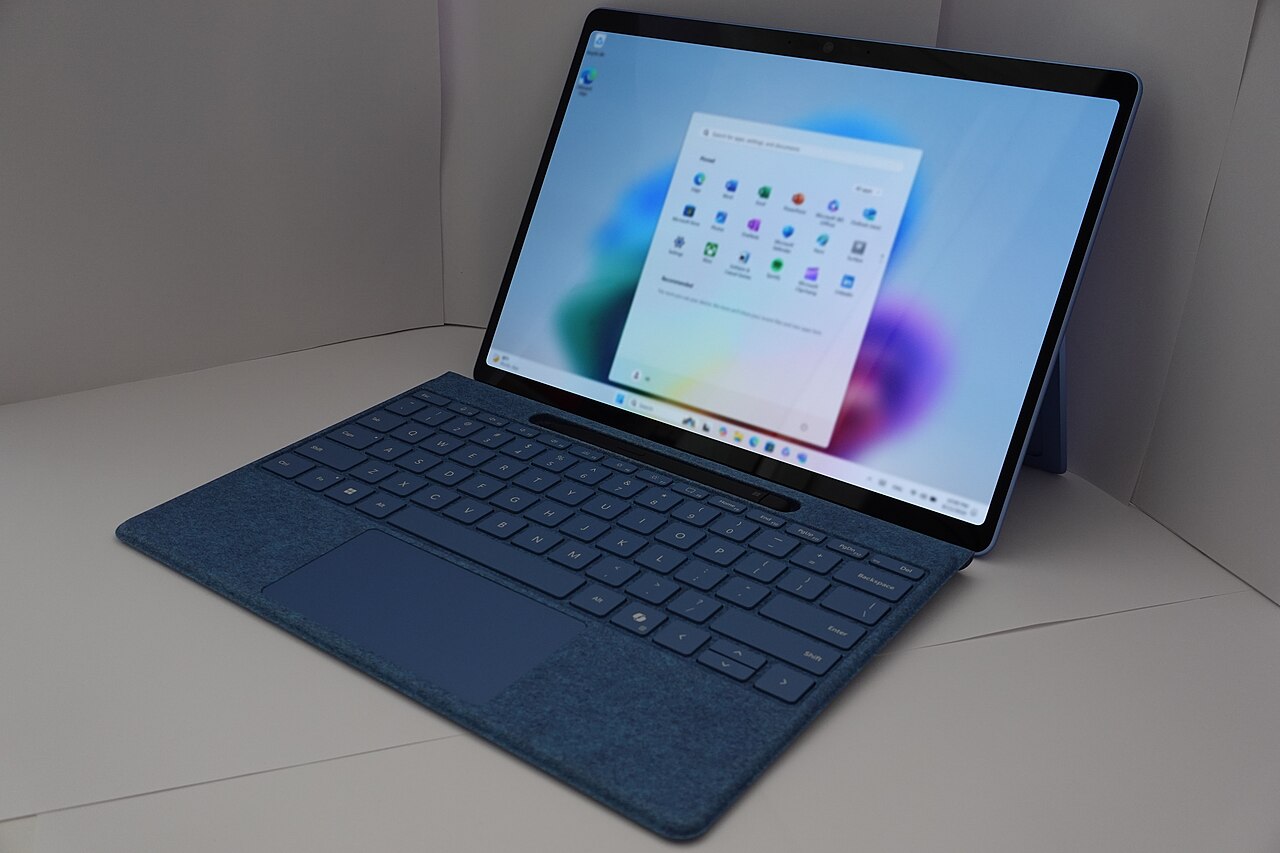
Don't read the photograph above as a version check, either. A familiar Start menu tells you far less than the information in About.
A work laptop may have a different answer
The Enterprise and Education lifecycle gives 24H2 a longer runway, into October 2027. That's why advice aimed at a home PC can be wrong for a managed work computer, even when both show the same feature-version label.
If your device belongs to an employer or school, send its support team the edition and version rather than trying to make its update schedule match a personal laptop. The point is to identify the machine's actual situation, not to turn a general headline into instructions for every Windows installation.
For your own computer, the Windows Update instructions put the check under Start, Settings, Windows Update. Select Check for updates and follow the offered download and installation steps. Save your work before any requested restart.
Then return to About and check the version again. That gives you a concrete result to compare with the lifecycle listing, rather than the vague reassurance that you installed something recently.
You don't need to treat every support deadline as a shopping deadline. First establish what you have, then check the update path offered to it. Windows 11 is the family name; the edition and feature version tell you which support timetable you're on.