
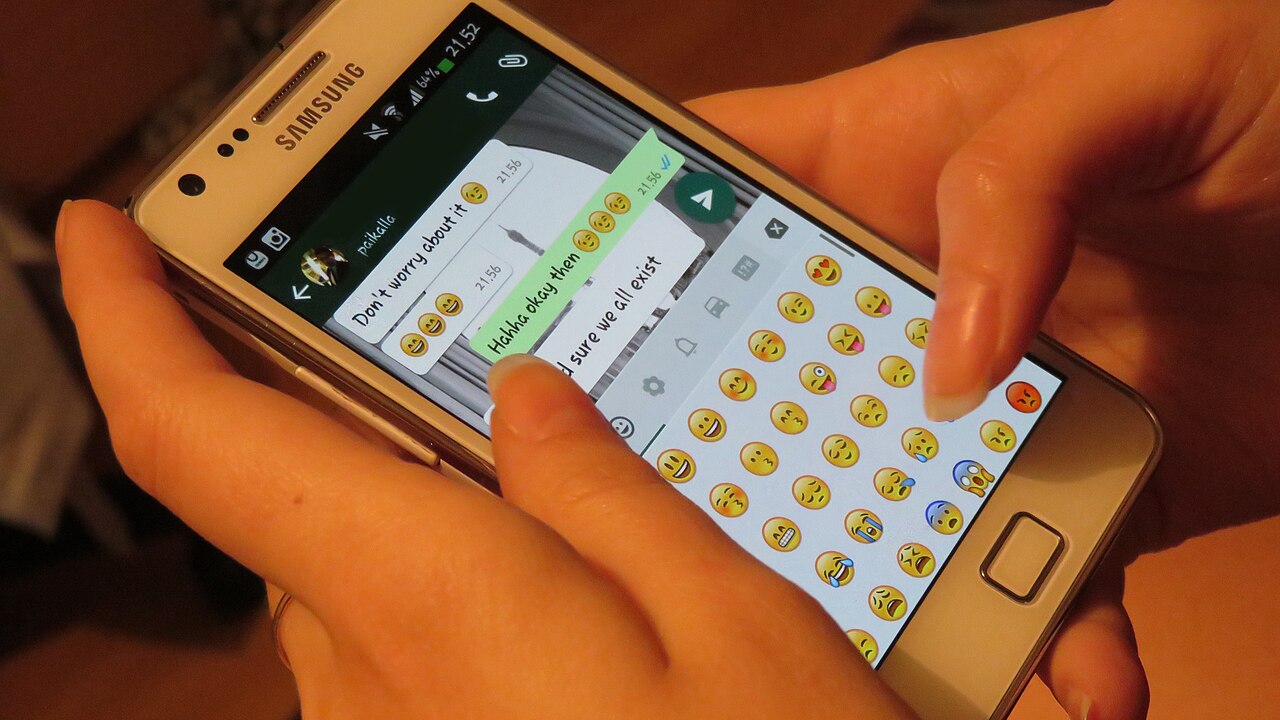
WhatsApp is adding a way to prepare a message now and have it arrive later. The new scheduled-message feature is rolling out globally over the coming weeks, so the announcement doesn't mean every account can use it immediately.
The useful place to check is the send button. In its scheduled-messages announcement, WhatsApp says to press and hold it, then choose a date and time. Messages can be scheduled from 10 minutes to 14 days ahead in individual and group chats, with support for text, photos and videos.
If that option isn't there, the announced rollout may not have reached you. WhatsApp's post doesn't give an account-by-account timetable or a platform-specific release sequence. Don't plan an important message around a control you haven't actually found.
Check what you've lined up
WhatsApp says you can view future messages and delete them before delivery. Recipients will see an ordinary message. The company also says delivery will work even when your phone is switched off or out of battery, and that scheduled personal messages remain end-to-end encrypted.
That makes the feature worth checking for a greeting or a routine group reminder you already know you want to send. It lets you separate the moment you remember something from the moment you want to interrupt someone.
Before scheduling, read the message as if the chosen time has already arrived. Does “tomorrow” still mean what you intend? Would a specific day or date be clearer? Relative wording that makes sense while you're composing can become confusing when someone reads it later.
Also check the recipient and the time before treating the task as finished. For a group reminder, include the actual event details in the message rather than assuming everyone remembers an earlier conversation. Scheduling an unclear note simply postpones the confusion.
Keep the pending-message view in mind when plans change. If a meeting is cancelled or a birthday plan becomes a surprise, revisit the messages you've prepared and remove anything that no longer fits.
For now, start with one low-stakes message after the scheduling option appears on your account. Confirm what you've queued, then keep urgent or changing arrangements in a live conversation where you can respond to the other person.