
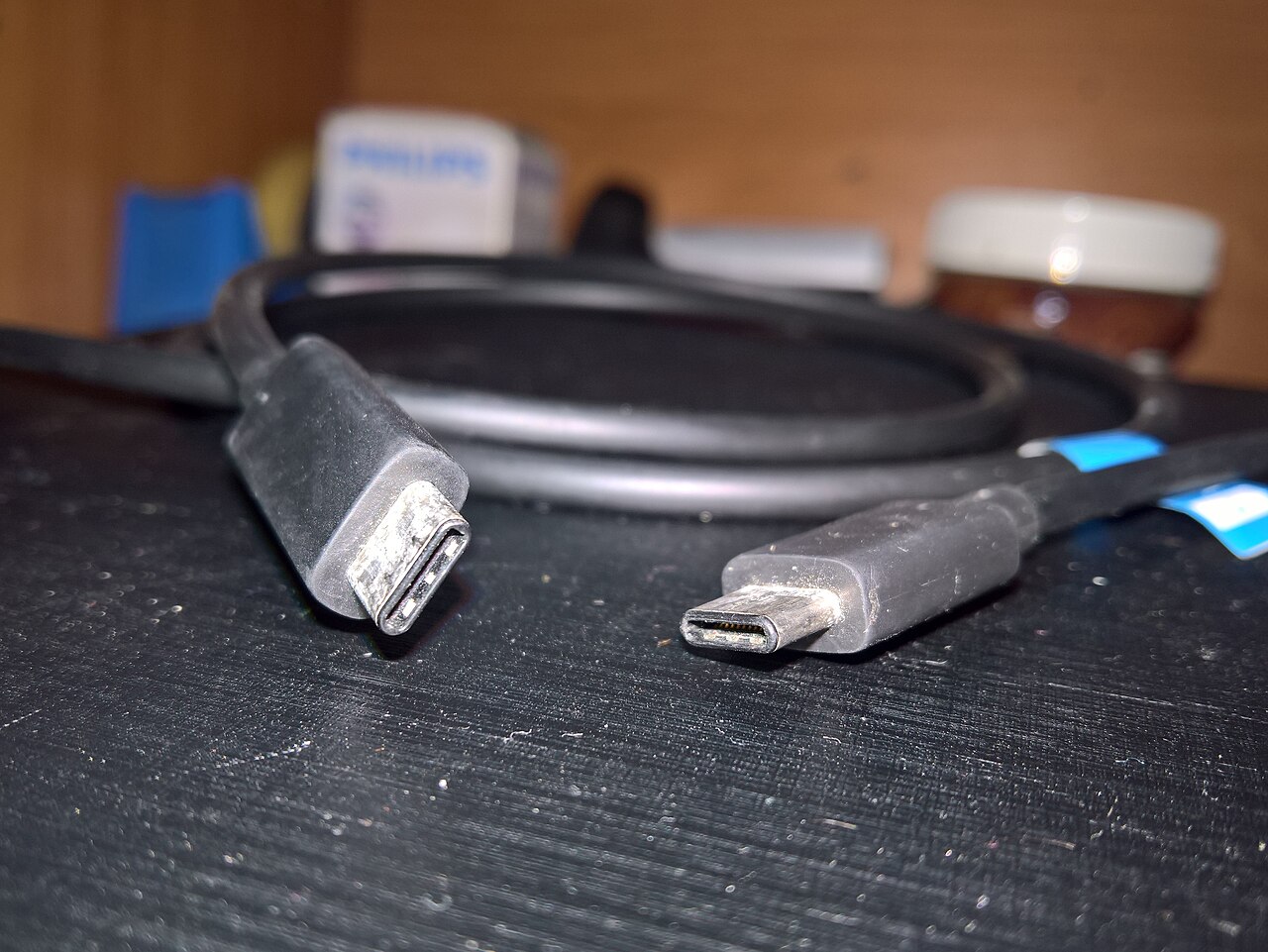
The cable that charges a laptop can be the wrong cable for its monitor. That is a frustrating distinction to discover when both ends fit, especially if you bought the cable with the biggest wattage on the shelf.
Our advice is to organise USB-C cables around three jobs: charging, moving files and connecting a display or dock. Choose the capabilities each job needs, then make the right cable easy to recognise. A small, labelled collection is more useful than a drawer full of impressive numbers you have to look up again.
Power tells you only part of the story
Apple offers a particularly clear example. Its 240W USB-C Charge Cable supports charging up to 240 watts but transfers data at USB 2 rates. Apple's Thunderbolt cable comparison puts the USB-C Charge Cable's data limit at 480Mbps and says it does not support video.
Those are different capabilities, not a contradiction. A cable intended to reach a wall charger need not offer the same connections as one linking a laptop to a workstation. The trouble starts when a charging purchase becomes the default answer to every USB-C problem.
For a bedside charger, ask whether the cable supports the power your device and adapter can use, reaches the socket comfortably and comes from a supplier you trust. Paying for a faster data connection adds little if that cable never carries files. Conversely, choosing an external-drive cable by its charging wattage leaves the relevant question unanswered.
USB-IF's certification guidance separates the markings for a reason. Its USB-C-to-USB-C certification programme requires a 60W or 240W power marking. It also requires a supported data-rate marking, except for USB 2.0 cables. A power label on its own therefore gives you no basis to assume a fast data connection.
These are certification requirements, not a promise that every cable in an online marketplace follows them. Check the actual product specification rather than trying to decode a photograph of an unmarked plug.
Give demanding connections their own cable
Start with the connection that would be most annoying to troubleshoot. That might be a monitor which also serves as a hub, a dock with several peripherals, or an external drive used for large projects. Read the device's requirements and keep its supplied, suitable cable assigned to that job. Replace it only for a concrete reason, such as damage or insufficient reach.
A label saying “desk dock” is useful because it records a working setup. It saves you from treating every black lead as interchangeable. If you need a replacement, preserve the model name and specification somewhere searchable, too. A label helps you select a cable; it cannot establish compatibility with different equipment.
For an external drive, check the transfer standard supported by the drive, computer port and cable. For a display, check the required video connection as well as any charging requirement. USB-IF explicitly warns that a certified cable does not increase the capabilities of the products attached to it. The cable cannot supply a feature the port lacks.
Before relying on a travel kit, try the actual jobs at home: charge the laptop, copy a disposable test file to the drive and connect the intended display. This is a practical compatibility check, not a speed benchmark or electrical safety certification. Finding that a cable works for one job should not silently qualify it for the other two.
When one capable cable earns its place
There is a reasonable counterargument: buy one cable with broad capabilities and avoid the sorting. Apple's Thunderbolt 5 Pro Cable, for example, lists high-speed data, DisplayPort video and charging up to 240W. It illustrates why “USB-C cable” covers very different products.
A broadly compatible spare can make sense for someone moving between known docks and displays. The extra capability buys convenience when it matches those connections. It still needs the right length and support for the equipment at both ends, and carrying only one cable leaves no spare if it is lost.
For a mostly fixed setup, our preference is simpler: leave demanding connections wired, keep a charging cable where it is needed and carry a spare selected for the tasks you actually do away from home. Keep serviceable cables rather than replacing them just to make the drawer uniform.
The best result is being able to pick up a cable and know where it belongs. Shop for the missing job, label what you have, and stop asking a wattage number to explain the whole connection.