
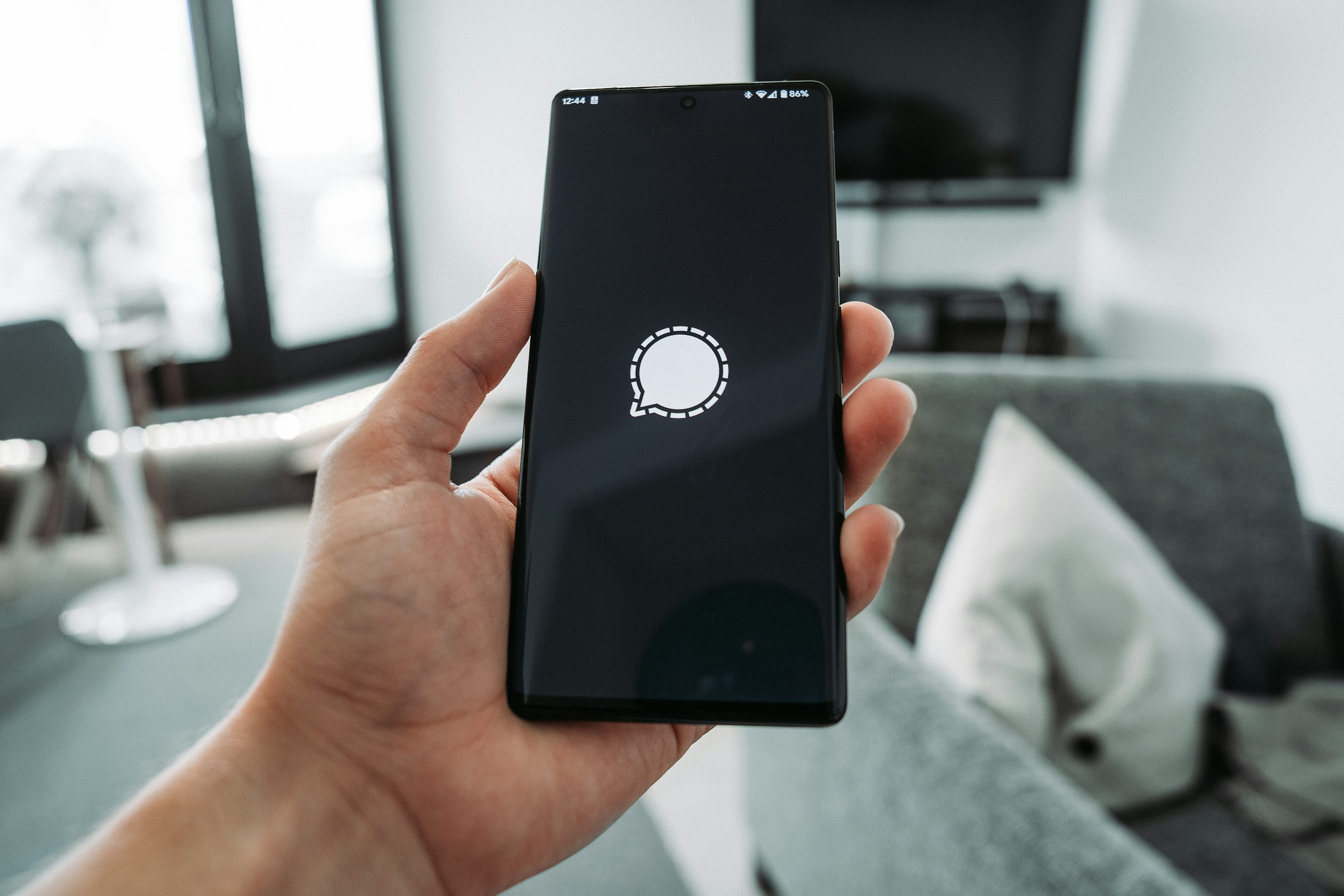
Signal is adding screen-capture restrictions aimed at operating-system AI assistants, while Google's new Mac automation controls give users another place to decide which apps an assistant may enter. The connection for this Daily Geek Drop is practical: check the protection on the device you're using, then check the assistant's own permissions.
These developments address different parts of the same everyday choice. You might want help organizing files while keeping private conversations outside that task. Knowing which switch governs which kind of access matters more than assuming that one privacy setting covers the whole computer.
Signal's protection depends on the platform
In its privacy announcement, Signal says it is blocking screenshots inside the app on iOS 27 and restricting detectable AI-assistant screen access on Android. On supported Android configurations, detection automatically enables Screen security; Signal says it cannot cover every Android device.
Users can disable the protection to take screenshots. Signal cautions that screenshot blocking doesn't prevent other potential access routes, including the filesystem. It also says it cannot reliably implement the same screenshot protection on macOS. For macOS 27, its current recommendation is adding Signal to Siri's Excluded Apps in System Settings.
That is a platform-specific recommendation, not a claim that every assistant follows Siri's exclusions. Keep that distinction when checking your setup: a setting belonging to one assistant shouldn't be treated as evidence about another.
Gemini has its own app list
The relevant follow-up to the Gemini Mac launch we covered is in Google's controls, rather than another tour of its demonstrations. The Gemini Mac help guide documents Blocked apps and Allowed apps under Settings, then Computer use.
Allowed apps can be used without another confirmation in the chat. “Allow once” applies to that step or conversation; “Always allow” adds an app to the persistent list. Google also says the feature requires macOS Accessibility and Screen & System Audio Recording permissions, and warns that access to some editors or developer tools can enable broader filesystem changes.
Those details give you concrete settings to review. They don't establish that Gemini bypasses Signal, and neither announcement demonstrates such a bypass. An app-access list and screenshot blocking address different mechanisms; don't combine their names into a promise of complete protection.
For your next automation task, name the apps it actually needs before granting access. Review any permanent allowances left over from earlier experiments, and check sensitive messaging apps separately on each device. If you're troubleshooting a missing screenshot, check whether you would be disabling a deliberate privacy protection before changing the setting.
Keep the first task small enough that you can follow it and check its result. Convenience is easier to assess when you've decided what information the assistant needs, and what you want to leave outside the job.